How popular Reels effects work under the hood
Kinetic text, word-timed captions, text behind you, cover walls, orbit, zoom on a word and wipes: how each Reels effect is built in code, explained simply.
- Almost every trendy Reels effect is a stack of layers plus a timing rule tied to the frame number.
- Word-timed captions and zoom on a word both start from a transcript with a start and end time for every word.
- Text behind you, Covers wall and Orbit all need a per-frame cutout of the person, made by a segmentation model.
- How you film decides how clean the effect looks: plain background, good light, space around you.
- You do not have to write the code yourself: AI assistants and directed studios can write and render it for you.
Most popular Reels effects are simpler than they look. Under the hood, each one is a stack of layers (your video, some text, maybe a cutout of you) plus a rule that says how those layers move on every frame. Captions and "zoom on a word" use a transcript with exact word timings. Text behind you, a wall of covers and the orbit effect add one more ingredient: a mask that separates you from the background.
Below, each effect is explained in plain words, with what you need to film so it looks clean. If "video as code" is new to you, start with our explainer on making videos with code.
The two ideas behind every effect
1. Everything is a function of the frame number
A Reel at 30 frames per second is just 30 still images per second. In code-based video tools like Remotion, every animation is calculated from the current frame number: "at frame 12, the title is 40% visible." Remotion even warns against ordinary CSS animations, because frames can be rendered out of order or more than once, so anything not tied to the frame number can flicker or break.
Two helpers do most of the work. interpolate() maps a range of frames to a range of values (frames 0 to 20 become opacity 0 to 1). spring() produces a natural, slightly bouncy motion from 0 to 1, the "pop" you see in so many captions.
2. Layers are stacked like a sandwich
Think of three slices: the background, whatever you add (text, covers, shapes), and you on top. If you only have the original video, you can only put things in front of yourself. To put something behind you, you need a cutout of the person, and that is where segmentation comes in.
Note: Segmentation is a model that labels each pixel as "person" or "background". The output is a mask, a black and white image that works like a stencil.
The effects, one by one
| Effect | What viewers see | What the code does | What makes it hard |
|---|---|---|---|
| Kinetic typography | Words fly, bounce or stack in rhythm | Each word or letter gets its own animation with a small delay | Rhythm and taste, not math |
| Word-timed captions | The spoken word lights up | Transcript with word times, grouped into short "pages" | Transcript accuracy, line breaks |
| Zoom on a word | Camera punches in on a key word | Scales the video at that word's timestamp | Keeping the face centered |
| Text behind you | Big title sits behind your head | Background, text, then your cutout on top | Clean edges on hair and hands |
| Covers wall | Your reel covers fill the wall behind you | A grid of images between background and cutout | Same as above, plus layout |
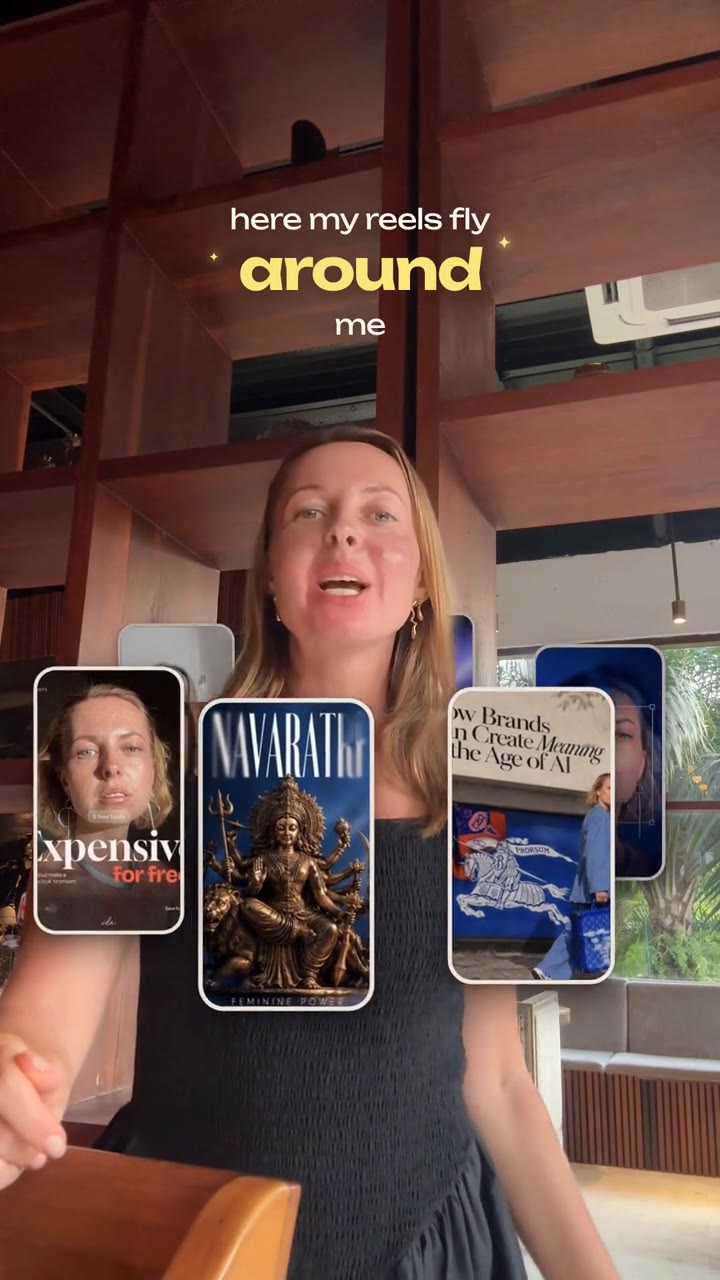
| Orbit | Covers circle around you, behind and in front | Each cover moves on an ellipse and switches layers | Depth switching and mask quality |
| Before/after wipe | A line slides across, revealing the edit | Two versions stacked, the top one clipped | Matching the two versions exactly |
Kinetic typography
Kinetic typography means text that moves with meaning: words slide in on the beat, a key word grows, a list stacks line by line. Technically, each word is its own element with its own animation, started a few frames after the previous one (this offset is called a stagger). The code is easy. The hard part is choosing which words move and how much, so the text supports the voice instead of fighting it.
Word-timed captions
First, the audio is transcribed with a speech-to-text model that returns a start and end time for each word. Remotion lists several ways to do this, from Whisper running on your own machine to cloud APIs. Then the words are grouped into short "pages" of two to four words. Remotion's createTikTokStyleCaptions() does exactly this: you choose how many milliseconds of speech fit on one page, and each word keeps its own start and end time.
On screen, every word checks "am I being spoken right now?" and highlights itself if yes. For design rules (safe zones, type pairs, line length), see our captions guide.
Here is a short, simplified version of one caption word in Remotion. It pops in when the word starts and turns yellow while it is spoken:
import {interpolate, spring, useCurrentFrame, useVideoConfig} from 'remotion';

type Token = {text: string; fromMs: number; toMs: number};

export const CaptionWord = ({token}: {token: Token}) => {
  const frame = useCurrentFrame(); // assumes this sits at the start of the timeline
  const {fps} = useVideoConfig();
  const startFrame = Math.round((token.fromMs / 1000) * fps);
  const endFrame = Math.round((token.toMs / 1000) * fps);

  // 0 before the word, then springs to 1 with a small bounce
  const pop = spring({frame, fps, delay: startFrame, config: {damping: 12}});
  const scale = interpolate(pop, [0, 1], [0.85, 1]);
  const isSpoken = frame >= startFrame && frame < endFrame;

  return (
    <span
      style={{
        display: 'inline-block',
        whiteSpace: 'pre',
        transform: `scale(${scale})`,
        color: isSpoken ? '#FFD400' : '#FFFFFF',
      }}
    >
      {token.text}
    </span>
  );
};
In plain words: convert the word's time from milliseconds to a frame number, start a spring at that frame, and switch the color while the word lasts. Inside a Sequence, the frame counter restarts at zero, so a real project subtracts the page's start time first.
Zoom on a word
The same transcript drives the "punch in": when the speaker says the key word, the whole video scales up a little (for example to 110 or 115%) with a spring, then eases back. To keep it from cropping your face, the zoom is centered on where the face is, found by face detection. It works best on one or two words per Reel. More than that starts to feel like a nervous camera.
Text behind you
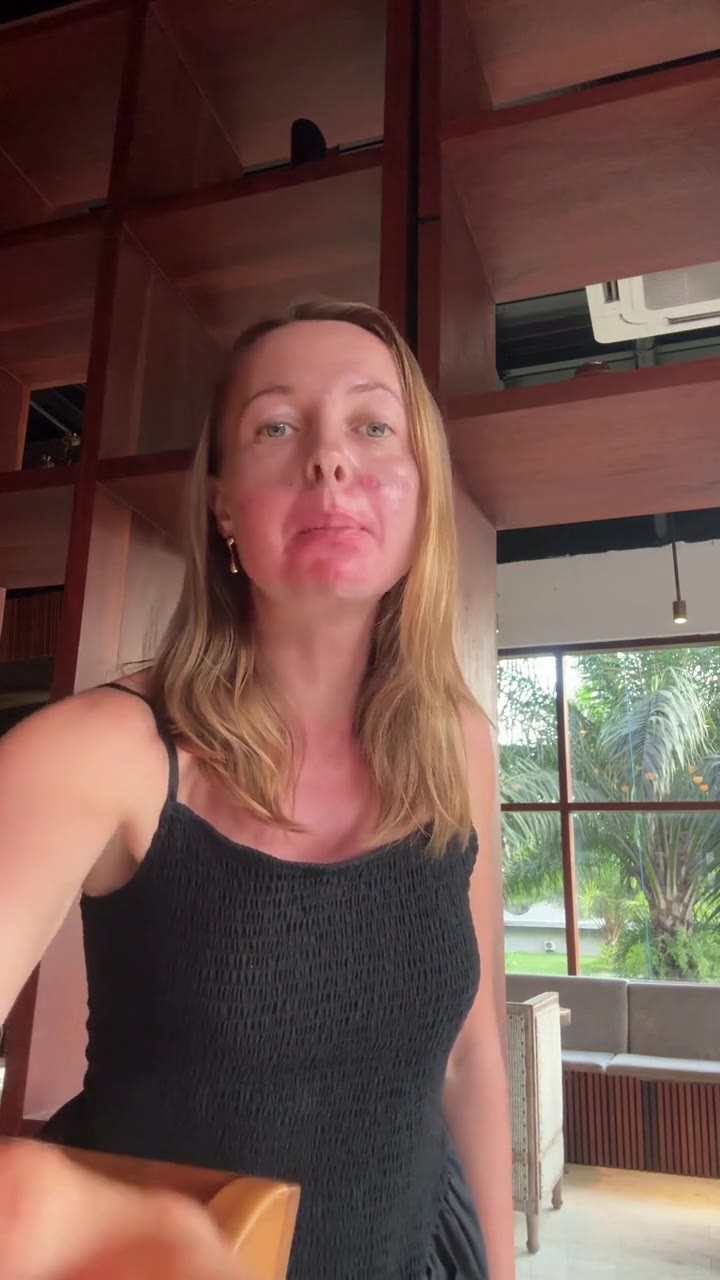
This is the sandwich in action: the original frame at the bottom, a big title in the middle, and the cutout of you on top. Google's MediaPipe Image Segmenter is one option: it has a selfie model that separates a person from the background and a video mode for processing frames one after another. Meta's SAM 2 lets you click an object once and tracks it through the whole video, and SAM 3 adds text prompts.
Once you have the cutout as a video with transparency (an alpha channel), Remotion can layer it over anything.
Covers wall
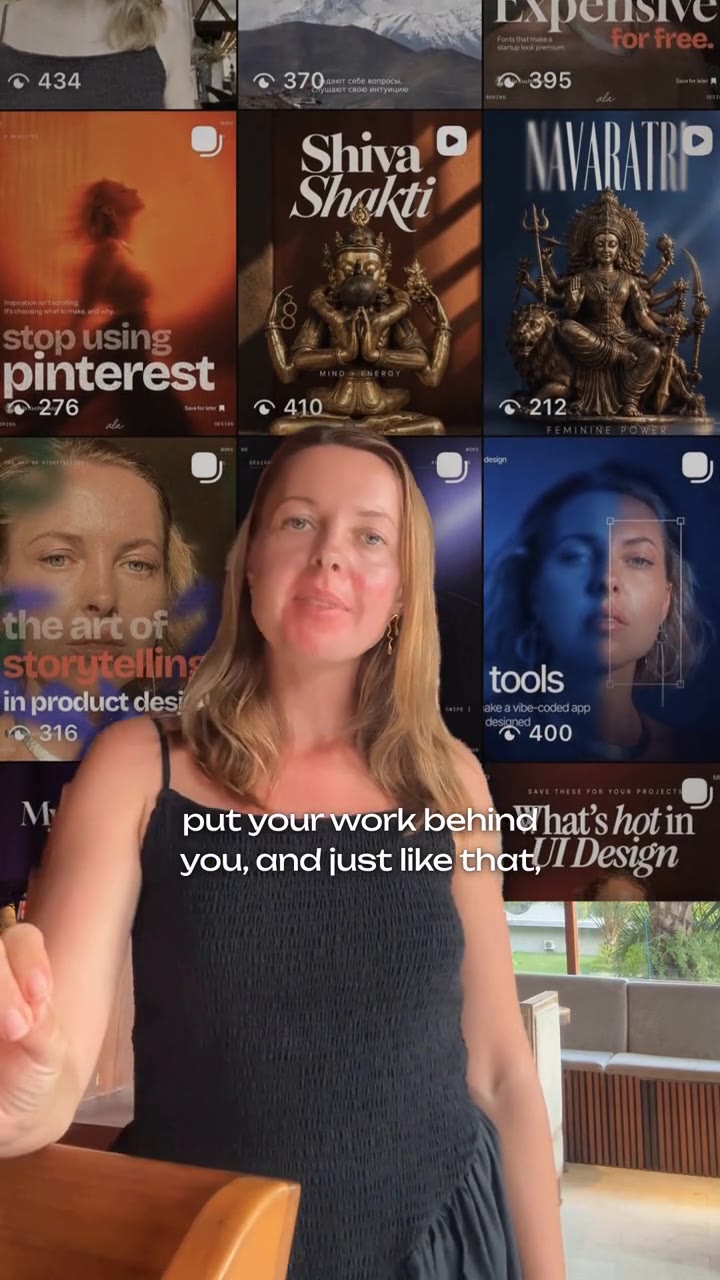
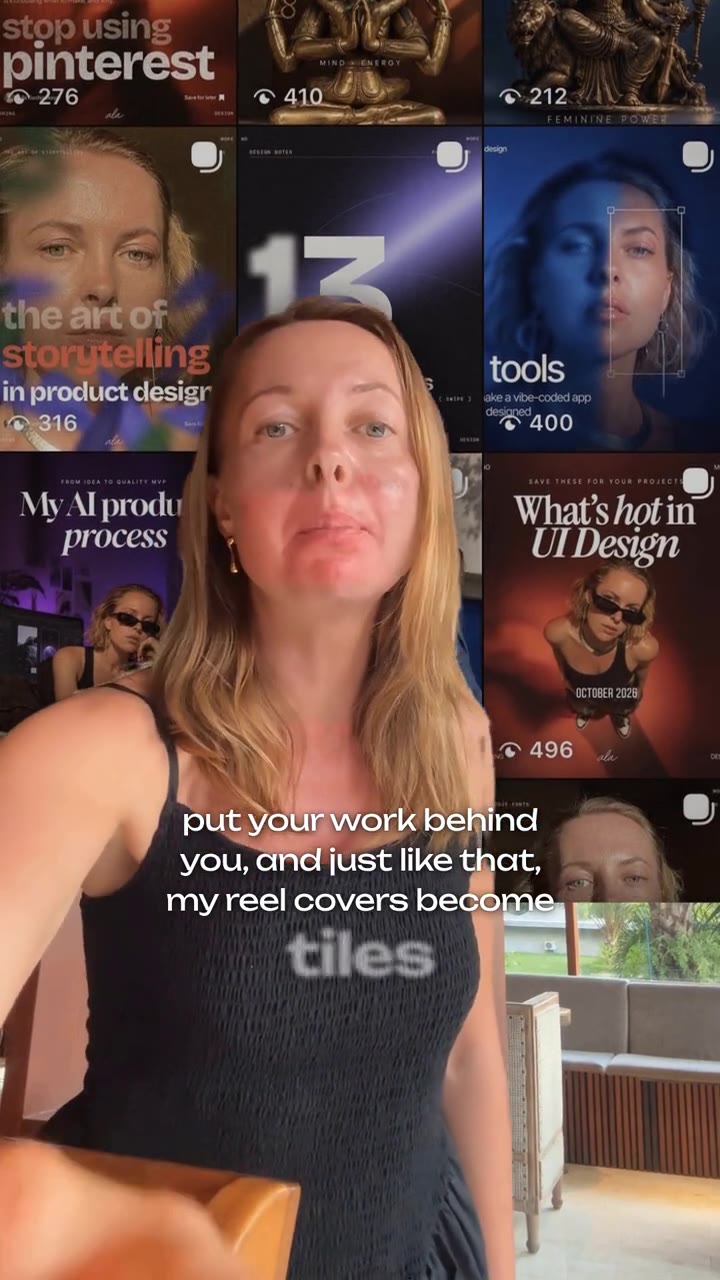
Covers wall replaces or covers the wall behind you with a grid of your reel covers while you stay in front. It is the same three layers, with a grid instead of a title. The covers usually appear one after another with a stagger, sometimes with a slow drift so the wall feels alive.
Orbit
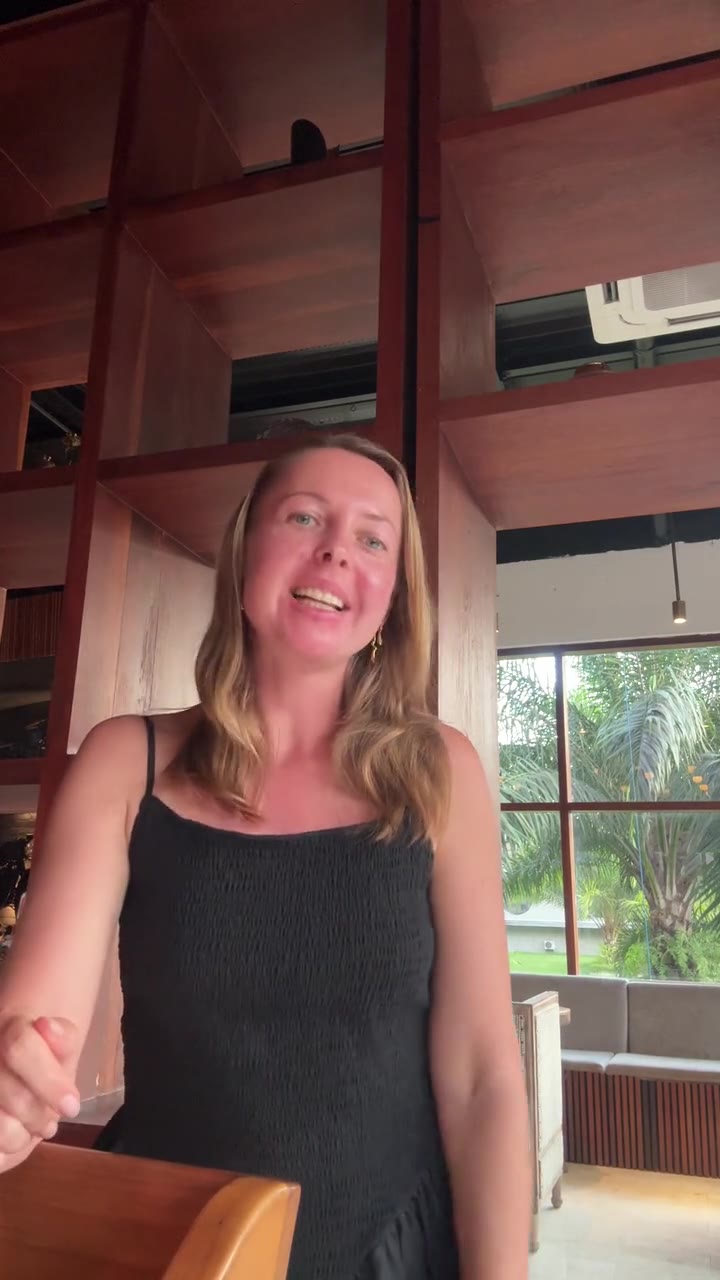
Orbit is the most "magic" of the set: covers fly around you, passing behind your head and then in front of your shoulders. Each cover moves along an ellipse. Its angle grows every frame, its horizontal position comes from the cosine of that angle, and its depth comes from the sine. When the depth says "behind", the cover is drawn in the layer under your cutout. When it says "in front", it moves to the layer above. Covers also get a bit smaller and dimmer when behind, which sells the 3D illusion.
Before/after wipe
Two versions of the same clip are stacked exactly on top of each other: raw below, edited above. The top one is clipped with a CSS inset() shape, where the right inset goes from 100% to 0% over a second or so, and a thin line follows the edge. The trick is alignment: if the edited version was trimmed differently, the wipe reveals a jump.
How to film so these effects look clean
You cannot fix a bad mask in code. A few habits make every effect above look better:
- Stand away from the wall. A few steps of distance give the segmentation model a clear outline and leave room for text behind you.
- Pick a plain, contrasting background. A light wall behind dark hair, or the reverse. Busy shelves confuse the mask.
- Use soft, even light from the front. Low light adds noise, and noise makes edges flicker.
- Leave headroom. Orbit and text behind you need empty space above and beside your head.
- Lock exposure and focus on your phone. Brightness jumps change the mask from frame to frame.
- Speak clearly. Better audio means a better transcript, which means captions and zooms land on the right word.
Tip: Film 10 seconds as a test and apply the effect before recording the full Reel. It is much faster than discovering a messy mask after a 20-minute session.
Do you need to write this code yourself?
No. Knowing how the layers work helps you film for the effect and ask for it precisely, but the code itself is now the easy part. AI coding assistants can write Remotion components from a description, as we cover in our Claude Code guide. In Reel Maker, Orbit and Covers wall are built in: you pick a look, drop your footage and say what you want, and the layers, timing and mask are handled for you.
What still matters is the human part: choosing one effect that fits the message, instead of five that compete with it.
If you want to try Orbit and Covers wall on your own footage, join the Reel Maker waitlist or come say hi in our Telegram community, where we share new effects first.
Questions and answers
Do I need to know how to code to use these effects?
No. Understanding the idea helps you film better and ask for the right thing, but AI assistants and editing studios can write and render the code for you.
What is segmentation in video?
It is a model that decides, pixel by pixel, which part of the frame is the person and which is the background. The result is a mask that lets you place things behind you.
Why do cutout edges sometimes flicker?
The mask is calculated frame by frame, so small differences in hair, motion blur or low light change the edge slightly each frame. A plain background and good light reduce it.
Why not just use CSS animations or a timeline editor?
Video code tools like Remotion render each frame separately, so animations must be calculated from the frame number. That is also what makes the result repeatable and exact.
Sources
- Remotion: interpolate()
- Remotion: spring()
- Remotion: Don't use CSS animations
- Remotion: Transcribing audio
- Remotion: createTikTokStyleCaptions()
- Remotion: Embedding transparent videos
- Remotion: Sequence
- Google AI Edge: MediaPipe Image segmentation guide
- Meta AI: Segment Anything Model 2
- Meta AI: SAM 3
- MDN: inset() CSS function